
Getting started
To accept payments via the NBG Pay tom application, you need to install the following two applications:
 NBG Pay tom
 EDPS Link
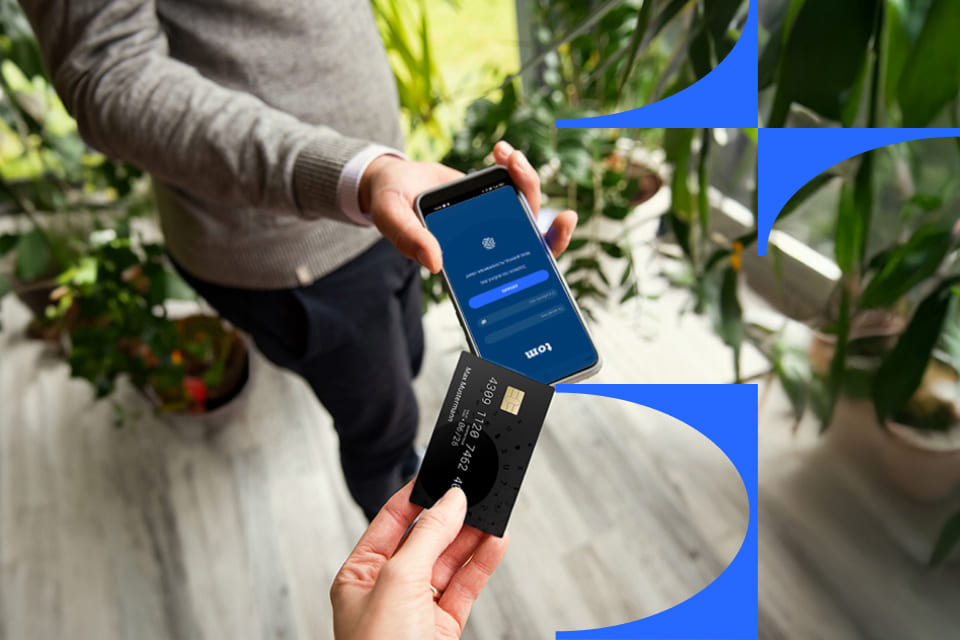
NBG Pay tom and EDPS Link installation and activation guide
-
Step 1
-
Step 2
-
Step 3
-
Step 4
-
Step 5
-
Step 6
-
Step 7
Step 1
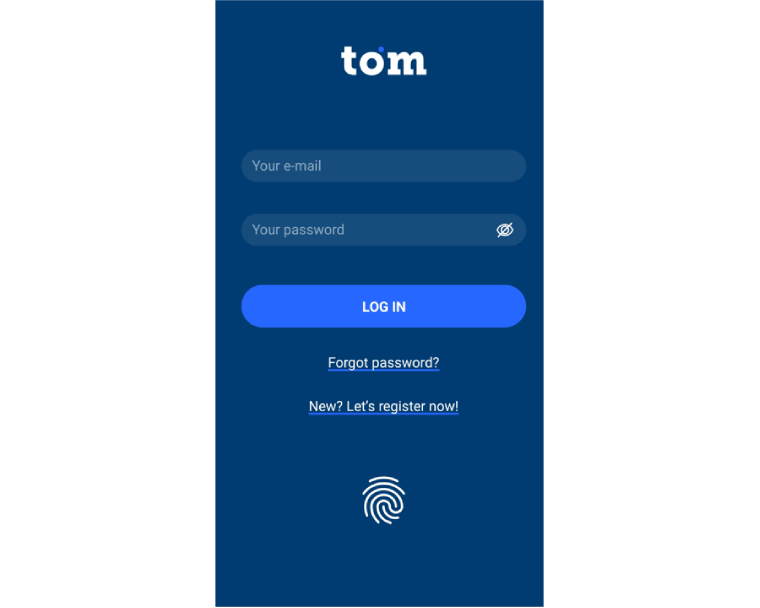

To activate the NBG Pay tom application, in the fields ‘your email’ and ‘your password’, fill in the information you received from us in the welcome email (activation email). If you do not find it in your inbox, please check your junk mail / spam folder.
Step 2
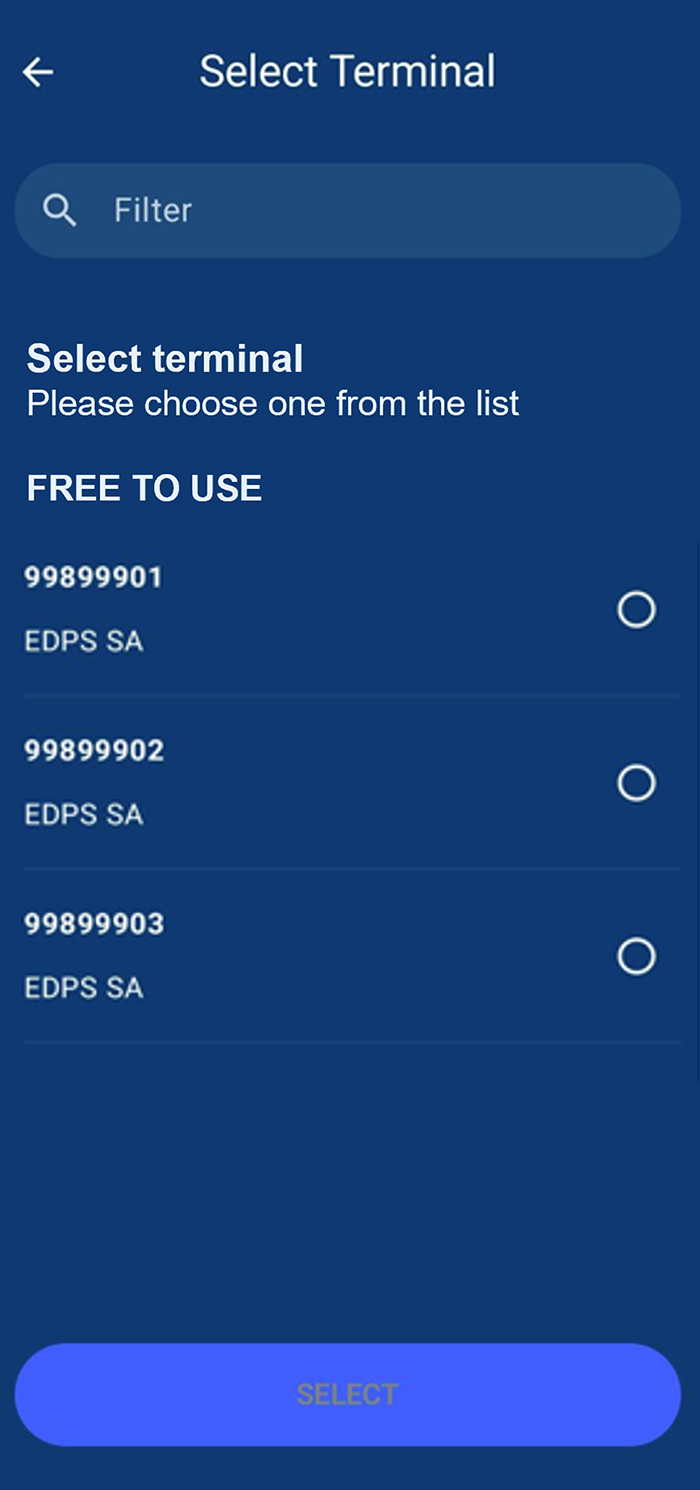
The first time you log in, you will need to select the TID (in case you have requested more than one license) that you want to use on the device from the list that appears.
Step 3
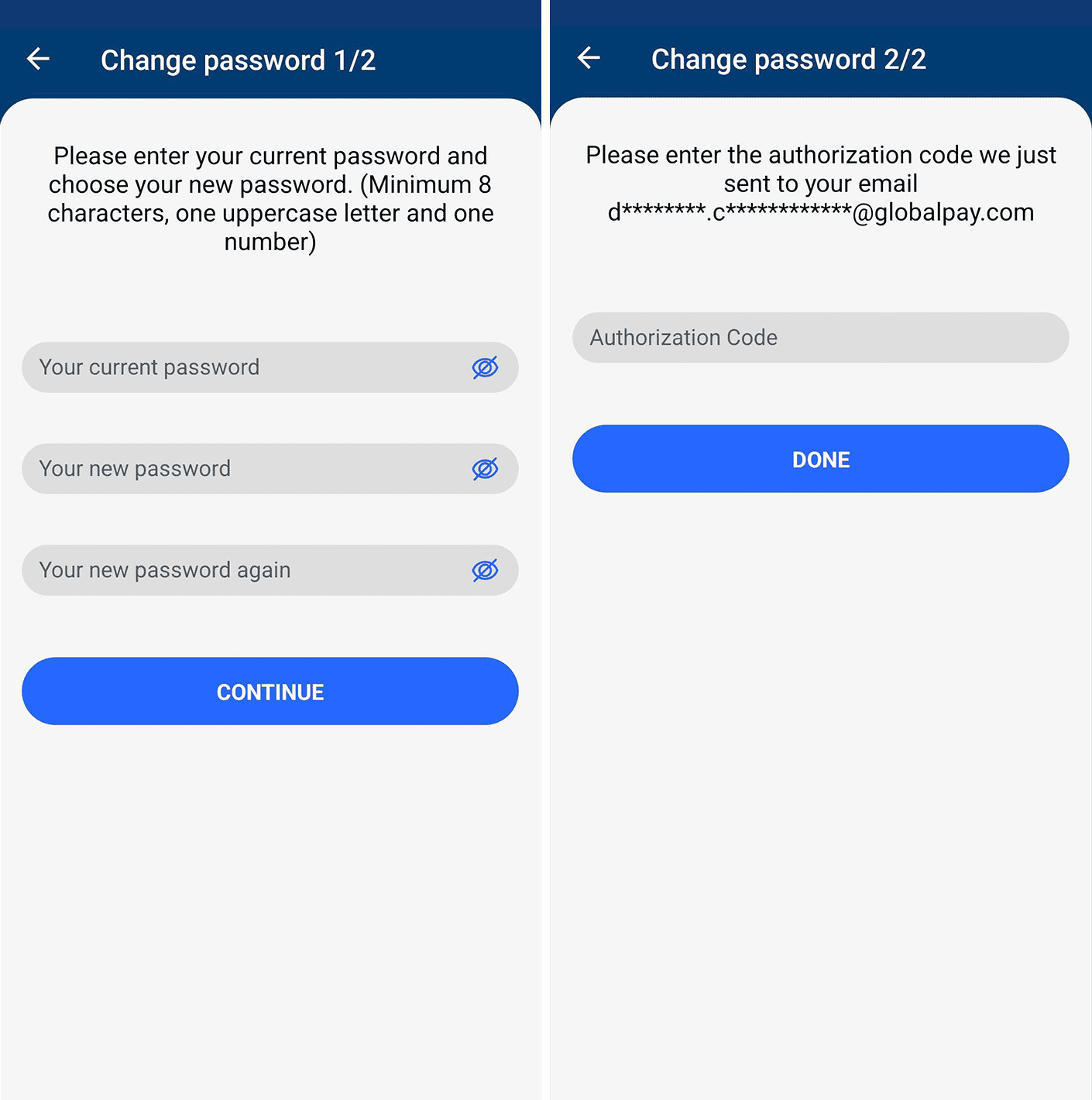
In this step you will need to set your own password to log in to the app. As soon as you confirm your own password, we will automatically send you an authorization code by email. Please enter it into the application.
Step 4
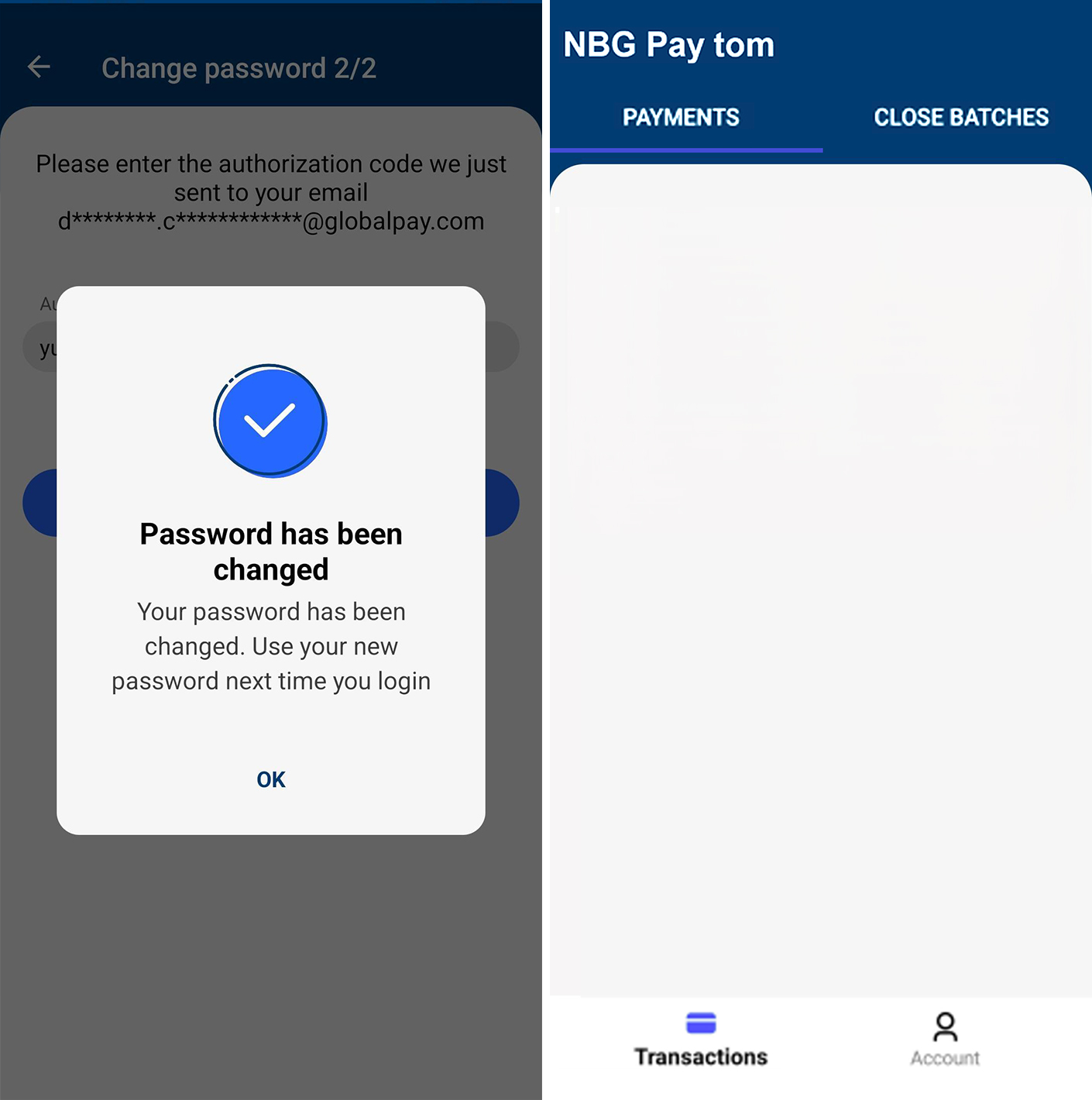
Once the code is entered correctly, the adjacent screen (left) will appear. By pressing ‘OK’ you will be redirected to the home screen (Note: Of course, you will not see any payments made when you first start)
Step 5
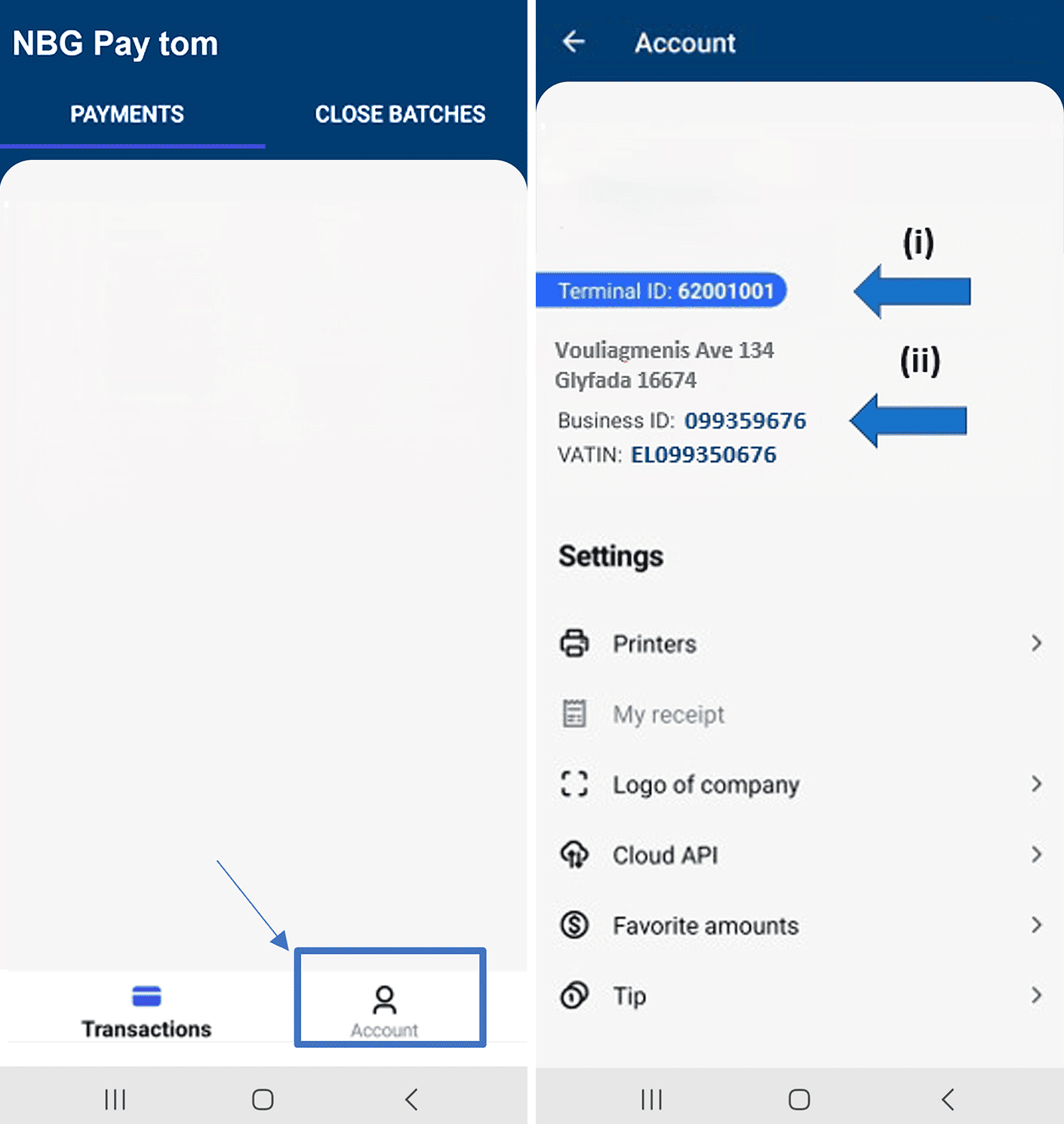
Click on ‘Account’ to locate the identifiers required to gain access to the EDPS Link application. You will need the (i) Terminal ID and the (ii) Business ID.
Step 6
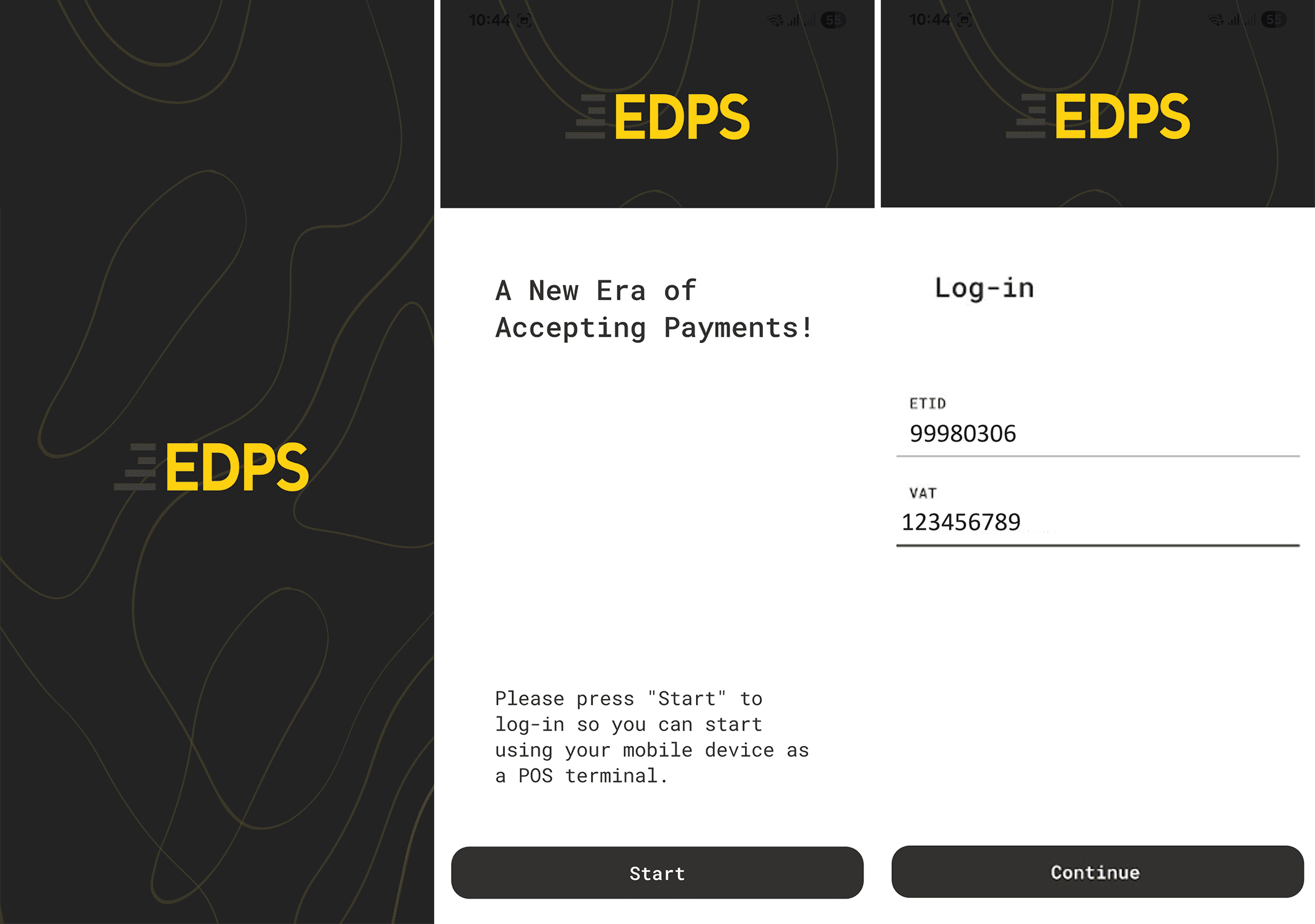
After downloading the EDPS Link application, fill in the Terminal ID and the Business ID as mentioned in the previous step
E.g. ETID = Terminal ID = 99980306
VAT number = Business ID = 123456789
Step 7
You are ready! You have completed all the necessary steps to install and activate the two applications..
For more information:
 210 9503600
 [email protected]